The simplest way to transfer data to a new phone is to use the maker’s setup tool: Apple’s Quick Start for iPhones, or Android’s copy option during first-time setup. Both move apps, photos and messages in one session.
Choosing the handset comes first, and the how to choose a smartphone guide covers that step. This article covers what happens once the new phone is in your hands.
Prepare the old phone first
Preparation prevents most failed transfers. Apple’s transfer instructions tell users to make sure they have a backup of the previous device and to have their Apple Account password ready. Google’s Android guidance says to charge both devices, to make sure the old one can be unlocked with its PIN, pattern or password, and to sign in with a Google Account to transfer the most data.
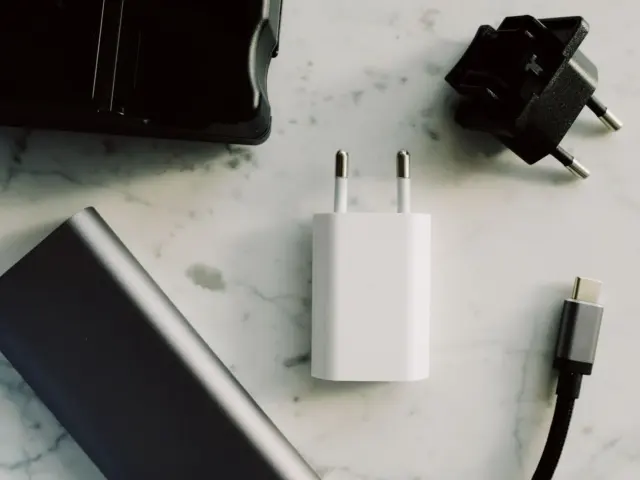
Both companies also mention the SIM card. Apple’s page lists moving the SIM card or eSIM as a step to plan before you begin, and Google’s page suggests having a SIM card tool ready to swap SIMs. If the new phone needs a different SIM format, Apple says to contact the carrier.
It is also worth checking storage. Google notes that if the new device does not have enough room, you can choose which data to transfer instead of copying everything.
Moving between two iPhones
Apple lists three transfer methods: Quick Start, iCloud, and a backup made with a computer through the Apple Devices app, iTunes or Finder.
Quick Start
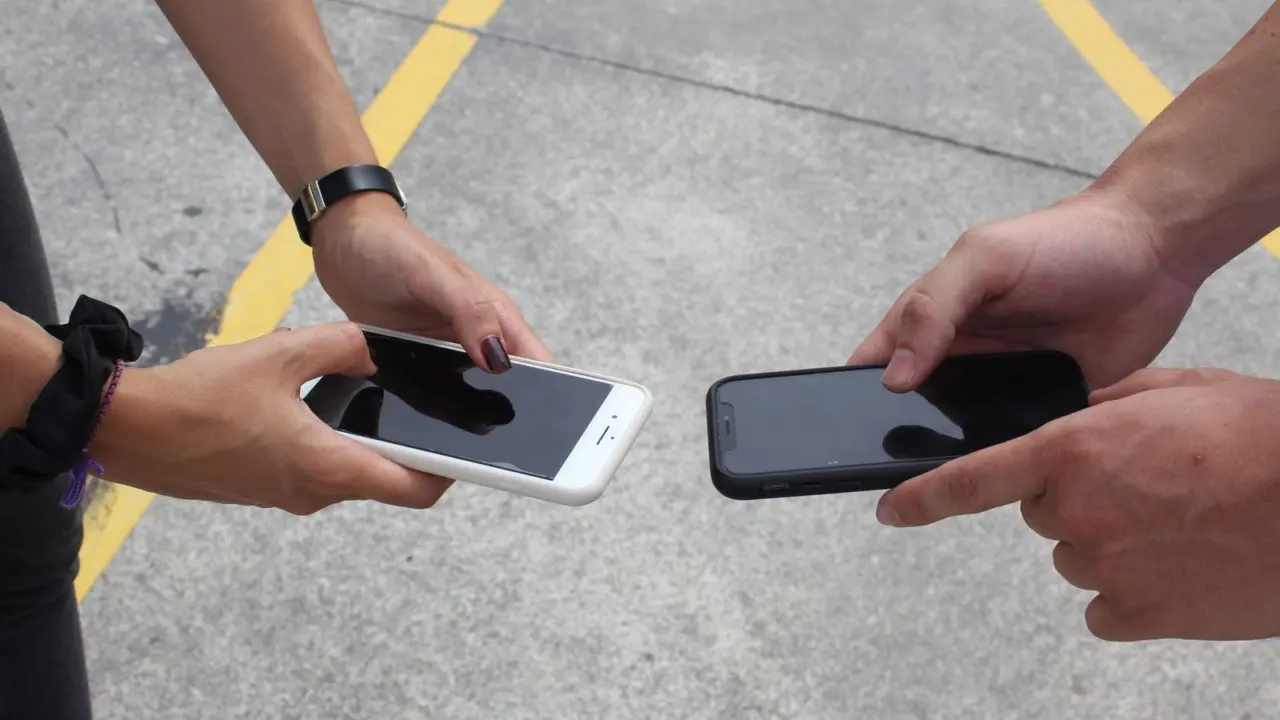
Quick Start works when the current device runs iOS 11 or iPadOS 13 or later, according to Apple’s Quick Start page. The page also says Quick Start occupies both devices, so it should be done at a time when the current device will not be needed for several minutes. Apple advises keeping the two devices near each other and plugged in to power until the data migration is complete.
The method has a trade-off. Apple explains that if you choose to download from iCloud, apps and data download in the background so the new device can be used right away. If you transfer directly from the previous device, both devices need to finish before they can be used. Devices enrolled in Apple School Manager or Apple Business cannot use Quick Start to transfer from a current device.
iCloud and computer backups
If the old phone is no longer available, an iCloud backup can restore the new one. Apple’s iCloud page says that when choosing a backup, users should check the date and size of each to make sure the correct one is selected. Using a nearby old device alongside the iCloud method requires iOS 17.2 or iPadOS 17.2 or later, per the same page.
- Quick Start occupies both devices: both devices
- Keep devices near each other and plugged in until migration completes: plugged in
- Apple advises a backup of the previous device before transfer: backup
- Apple lists three transfer methods: Quick Start, iCloud, and a computer backup: three methods
- Have the Apple Account password ready: Apple Account password
Moving between Android phones
Google’s Android help says that setup is the moment to copy. Its guide explains that you can only perform the data transfer once, and recommends doing it during setup because the option may not be available afterwards. Some of the steps work only on Android 10 and up, so very old phones may behave differently.
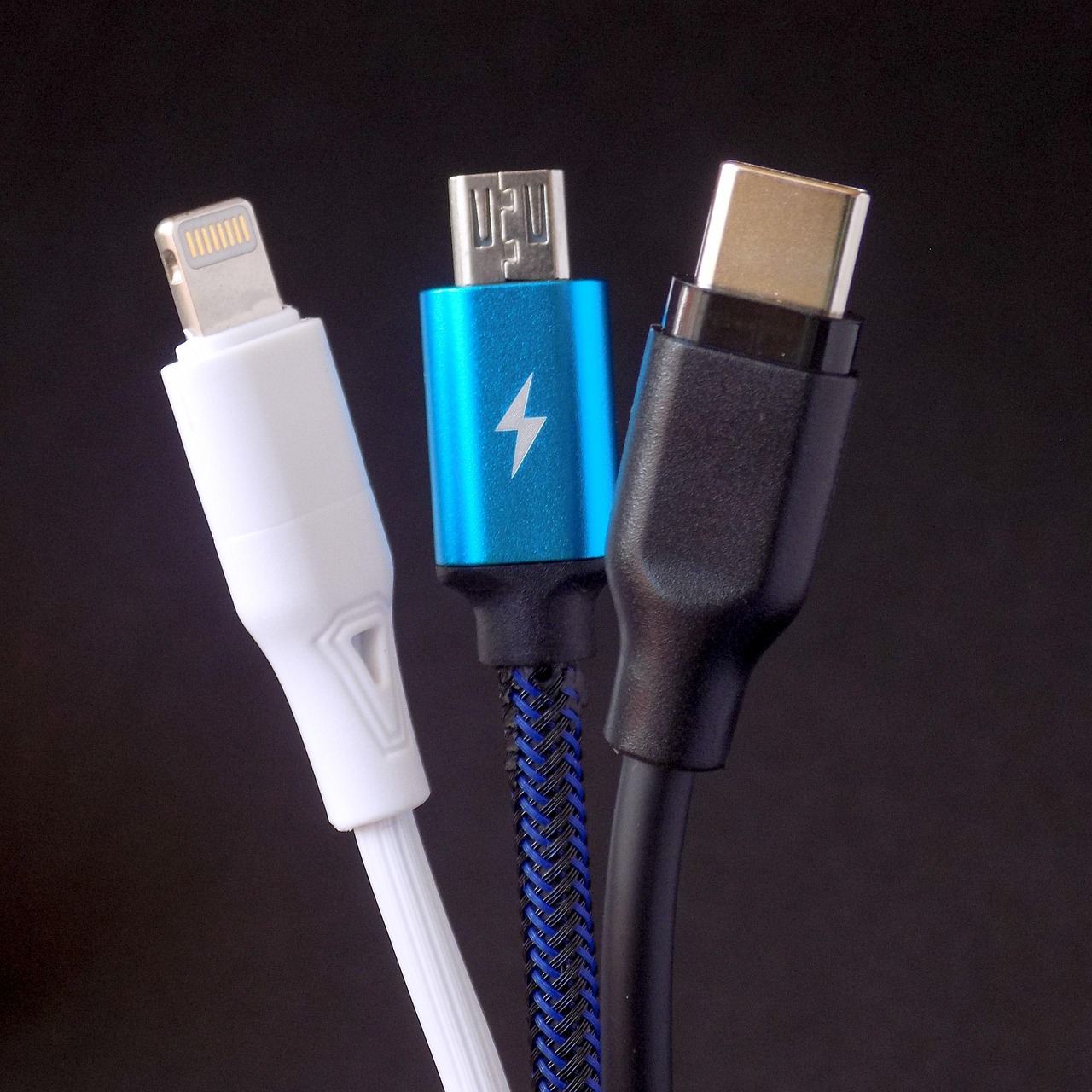
The cable and wireless options carry the same data, according to Google. A cable is the option Google recommends in its setup steps, and if the cable does not fit both phones an adapter may be needed. Google adds that the process can take from a few minutes to a few hours, depending on how much data is moved.
What copies and what does not
Google lists apps and certain app data, music, photos, videos, contacts stored on the phone or SIM card, text messages, call history, wallpaper and most settings among the items that copy during setup. It also lists items that will not copy, including downloads such as PDF files, apps that are not from the Google Play Store, and accounts other than Google Accounts. Phones managed by a business or school may not transfer all data. Samsung phones have a separate tool, Smart Switch, which Google’s page points to for Samsung devices.
Photos and files that did copy will behave as before on the new phone, but new shots depend on the new hardware. The phone camera sensor size article explains one reason two phones can photograph the same scene differently.
Switching between iPhone and Android
Google’s switching guide covers moving from an iPhone to a new Android phone. When the setup screen asks whether you want to copy data from an existing device, the user selects iPhone or iPad and follows the prompts, which may include scanning a QR code or connecting a cable.
Messaging apps need separate attention. For WhatsApp on Android, Google notes that you must first turn on WhatsApp backups on the old device before chats can be restored on the new one. Accounts that tie to one device may need to be verified again on the new phone, so check that they work before wiping anything.
A practical order of operations
Pulling the guidance from both companies together gives a sequence that works for most people. Update both phones to current software, because Apple notes that Quick Start occupies both devices and expects them to be up to date. Charge both, or keep them on power. Make a fresh backup so there is a fallback if something fails midway. Start the transfer when the old phone will not be needed for a while, because it is tied up until the migration ends.
During the transfer, leave the phones alone. Switching apps, moving the devices apart or letting a battery run down are the usual causes of interrupted copies, and Apple specifically says to keep the devices close and plugged in. Google warns that the Android copy option may not be available after setup, which is another reason to have a cloud backup before the attempt.
After the copy, open the apps that matter most and sign in again where required. Check message history, photos in the gallery and saved contacts. A short pass like this takes minutes and catches the gaps listed in the manufacturers’ own “what will not copy” notes.
Finish properly before wiping the old phone
Once the transfer finishes, look through photos, messages, contacts and key apps on the new phone. Google’s guidance is blunt on the order: clear data only after you have confirmed that all of it has been copied over to the new device.
When both devices are set up, update passwords and lock settings, and review which apps have permissions on the new phone. The smartphone security tips article covers those basics. Only then reset the old phone and decide whether to sell, hand down or recycle it.
Frequently asked questions
How long does a phone transfer take?
Show answer
Google says an Android transfer can take from a few minutes to a few hours. Apple says transfer times vary with network conditions and the amount of data.
Can I transfer data after setup is finished?
Show answer
On Android, Google says the copy can only be performed once and recommends doing it during setup. On iPhone, a backup can be restored by erasing the new device and starting setup again.
Do I need the old phone?
Show answer
Not always. Apple’s iCloud method and Google’s restore from a cloud backup both work without the old device, provided a recent backup exists and the account password is known.
Will everything move across?
Show answer
No. Google lists items that do not copy, such as downloads, apps from outside Google Play and non-Google accounts.