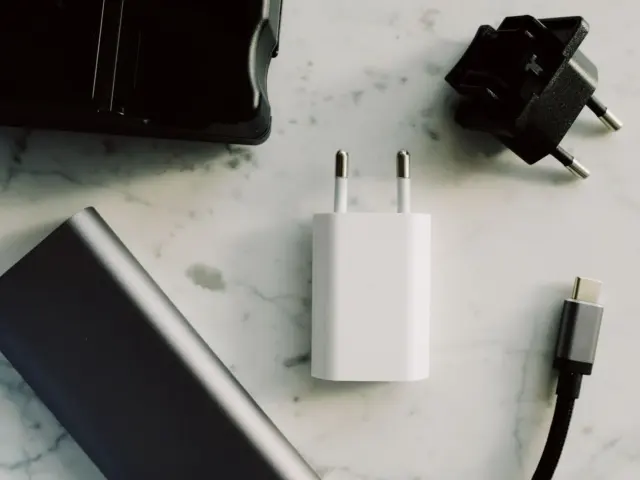

Core smartphone security tips: use a strong screen lock, install updates, limit app permissions, distrust unexpected messages, and switch on lost-phone tools early. Each step below comes from Apple, Google or CISA documentation.
Which phone you own shapes the details, and the guide on how to choose a smartphone covers the other specs that affect long-term use, including how long updates last.
Start with the screen lock
The screen lock is the first barrier between a stranger and everything on the phone. Google’s Android help page is blunt about the weakest options: choosing None leaves the phone unlocked and gives no protection, though you can get to your Home screen quickly. A swipe-to-unlock screen is described the same way.
For a PIN, Google says to enter 4 or more numbers, but a 6 digit PIN is recommended for added security, and that longer PINs tend to be more secure. Google also warns that if you opt in to Auto-confirm unlock, it may decrease the security of your device.
On an iPhone, the passcode plays the same role, and Apple’s Stolen Device Protection adds a second layer for the case where a thief has watched you type it. Changing an Apple Account password can also require waiting an hour, then another Face ID or Touch ID check. Apple states that the feature is available with iOS 17.3 or later and must be turned on before the device is lost or stolen.
Keep the software up to date
Apple’s guidance is direct: keeping your software up to date is one of the most important things you can do to maintain your Apple product’s security. The company recommends turning on automatic updates when you first set up the device. With Automatically Install enabled, an iPhone downloads and installs the update overnight while charging and connected to Wi-Fi, and it notifies you before installing. Before a manual update, Apple’s steps are to back up the device using iCloud or a computer, plug it into power, connect to Wi-Fi, then open Settings, tap General and tap Software Update. Google’s equivalent advice is to connect to Wi-Fi and charge the device to at least 75% before updating.
Android works a little differently. Google’s help page says most system updates and security patches install automatically, and that you can check the Android version, security update and Google Play system update from Settings. To check, open Settings, tap System and then Software updates, where the update status is shown. Google also notes that update schedules vary by device, manufacturer and mobile carrier, and that older devices can’t always run newer Android versions. That last point means the maker’s update commitment is part of the real security of an Android phone, a subject covered in the comparison of android vs ios approaches.
Check what apps can access
Apps ask for permission to use features such as the camera or the contacts list, and you can allow or deny each request. Google’s Android help explains that for location, camera and microphone you can often choose to allow access only while using the app, meaning the app can use the permission only when you’re using that app. Google’s permission manager lets you see which apps hold each permission type, such as calendar, contacts, camera, location and microphone, so a periodic review of that list in Settings is worthwhile.
Android can also remove permissions from apps you no longer use. In the app’s settings, under Unused app settings, you can turn on Pause app activity if unused. It is a low-effort way to shrink the amount of data that old apps can reach.
Google Play Protect adds a scanning layer. Google says it checks your apps and devices for harmful behavior, and that it runs a safety check on apps from the Google Play Store before you download them. It also checks the device for potentially harmful apps from other sources and warns you about them.
Recognise phishing messages
Phones are used for texts, chat apps and email, which makes them a common route for phishing. CISA defines phishing as criminals trying to get people to open harmful links, emails or attachments that could request personal information or infect devices, and notes that the messages usually come as an email, text, direct message on social media or phone call.
The agency lists signs to look for, including urgent or emotionally appealing language, especially messages that claim dire consequences for not responding immediately. Other signs are requests to send personal and financial information, untrusted shortened URLs, and incorrect email addresses or links. CISA also cautions that perfect grammar is no longer a reliable sign because some messages now have perfect spelling.
If a message might be genuine, CISA’s advice is not to click any link or call any number in the message. Look up the company’s contact details on its verified website, or use another way to reach the person, and confirm there.
Prepare for a lost or stolen phone
Apple’s Find My service can locate a lost device on a map, and it can mark the device as lost to protect your device and personal information, or erase it if you believe it’s permanently lost or stolen. Lost Mode locks the device with a passcode or your Apple Account password.
Before selling or replacing a handset, a clean move of your data matters as much as the lock. The transfer data to new phone guide walks through moving accounts and files to the new device, so the old one can be wiped without losing anything.
When to consider extreme protection
Apple offers Lockdown Mode for a small group. Its support page describes it as an optional, extreme protection designed for the very few individuals who, because of who they are or what they do, might be personally targeted by some of the most sophisticated digital threats, and states that most people are never targeted by attacks of this nature. CISA has issued separate mobile guidance for highly targeted individuals, such as senior government, military and political figures. For most readers, the earlier steps are the relevant ones.
Put together, the documentation points to a short routine that takes little time to set up:
- Lock: pick a PIN, pattern or password rather than none or swipe, and prefer a longer PIN.
- Update: turn on automatic updates and check the update status in Settings from time to time.
- Permissions: allow location, camera and microphone only while an app is in use, and let unused apps lose their access.
- Messages: do not tap links in urgent texts; contact the organisation through its verified website instead.
- Recovery: switch on the device-finding tools while you still have the phone in hand.
Frequently asked questions
How long should a phone PIN be?
Show answer
Google’s Android help recommends a 6 digit PIN for added security and says longer PINs tend to be more secure.
Do software updates really matter?
Show answer
Apple describes keeping software up to date as one of the most important things a user can do to maintain security. Android security patches also arrive through system updates.
Should apps always have location access?
Show answer
Android lets you restrict location, camera and microphone permissions to times when you are using the app, which limits background access.
What if I think a message is a scam?
Show answer
CISA advises not clicking links or calling numbers in the message, and instead contacting the organisation through details from its verified website.